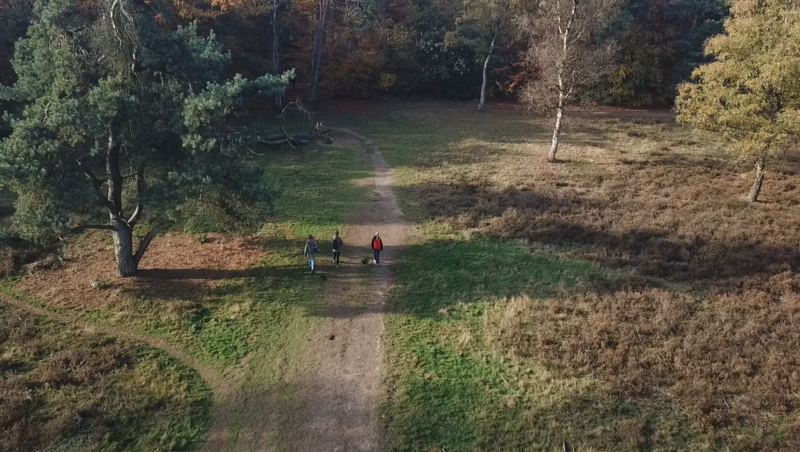




When you’re out in the field and want to mark a spot for your Peek excursion, you can do this in two ways. The easiest and most seamless option is to use MyPeek.
📍 Steps to Save a Location in MyPeek:
- Before you go: Create a new excursion in MyPeek.
- In the field: Open My Peek on your mobile phone.
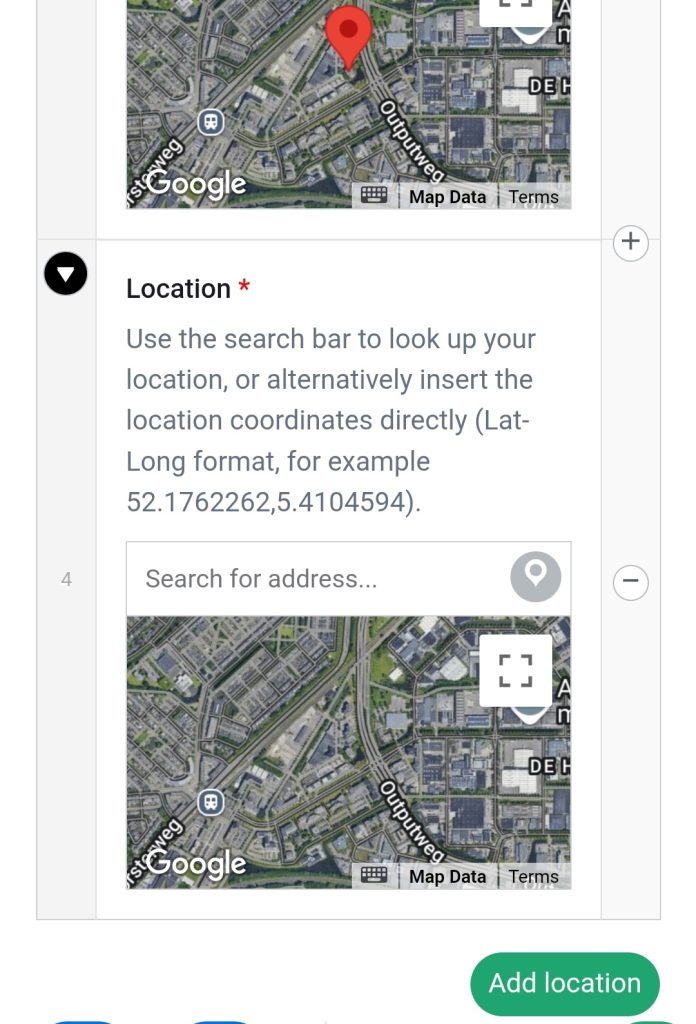
- Tap “Add Location.”
- Click the grey pin icon next to “Search for address…” (see image below).
- Give the location a clear name and any notes you want to remember.
- Do not forget to save the excursion.
✨ Tip: Using MyPeek means all your locations are automatically organised in your excursion. Back at your desk, you’ll find them ready to use for your questions, stops, or starting points, no copying or retyping needed!
📍Prefer Google Maps?
If you don’t want to use MyPeek, Google Maps is a great alternative for quickly saving locations.
- Open Google Maps on your phone.
- Tap and hold on the spot on the map where you want to save a location.
- A red pin will appear, swipe up on the info card at the bottom.
- Scroll and tap “Save” → Choose a list like Favorites or create your own.
- To get the exact coordinates: Tap “Dropped Pin”, scroll down, and copy the latitude and longitude (e.g., 52.123456, 5.123456).
📌 When building your excursion in MyPeek, you can paste these saved coordinates directly into your question locations or use them to drop points on the map. This way, you can easily turn your field exploration into an engaging digital route later on!